wrist-list for Amazfit/ZeppOS released
wrist-list
A couple of years ago I bought an Amazfit Bip5 Unity and I ported my watchface to the Amazfit/ZeppOS device. I have now ported wrist-list for Amazfit/ZeppOS devices.
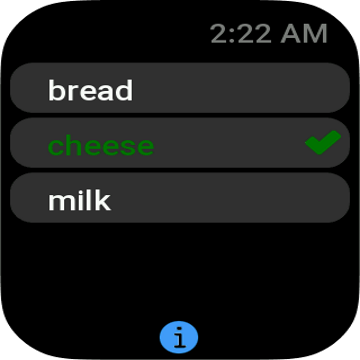
The primary use case for the app is to be able to check off shopping items as you go around the supermarket without having to keep on getting your phone out. Hopefully it can also be used for many other todo list use cases.
wrist-list is not designed to edit and maintain lists, rather it will display lists from you chosen mobile todo list app conveniently on your wrist.
The main workflow is that you use your todo list application to produce your list, for example Google Keep, then get the list onto the clipboard and paste it into the wrist-list app settings page on your phone and then send it to your device. Once the list is on your device you can check and un-check items. If you exit the app on your device the list and all the check marks are saved until you either reset the list or send a new list from your phone.
Settings
The todo list is controlled from the settings page of the wrist-list app within the Zepp app on your phone.
- Open Zepp app on your phone
- Select the Device tab, the rightmost tab at the bottom of the screen
- Then select More in the Device App Settings panel
- Then select wrist-list
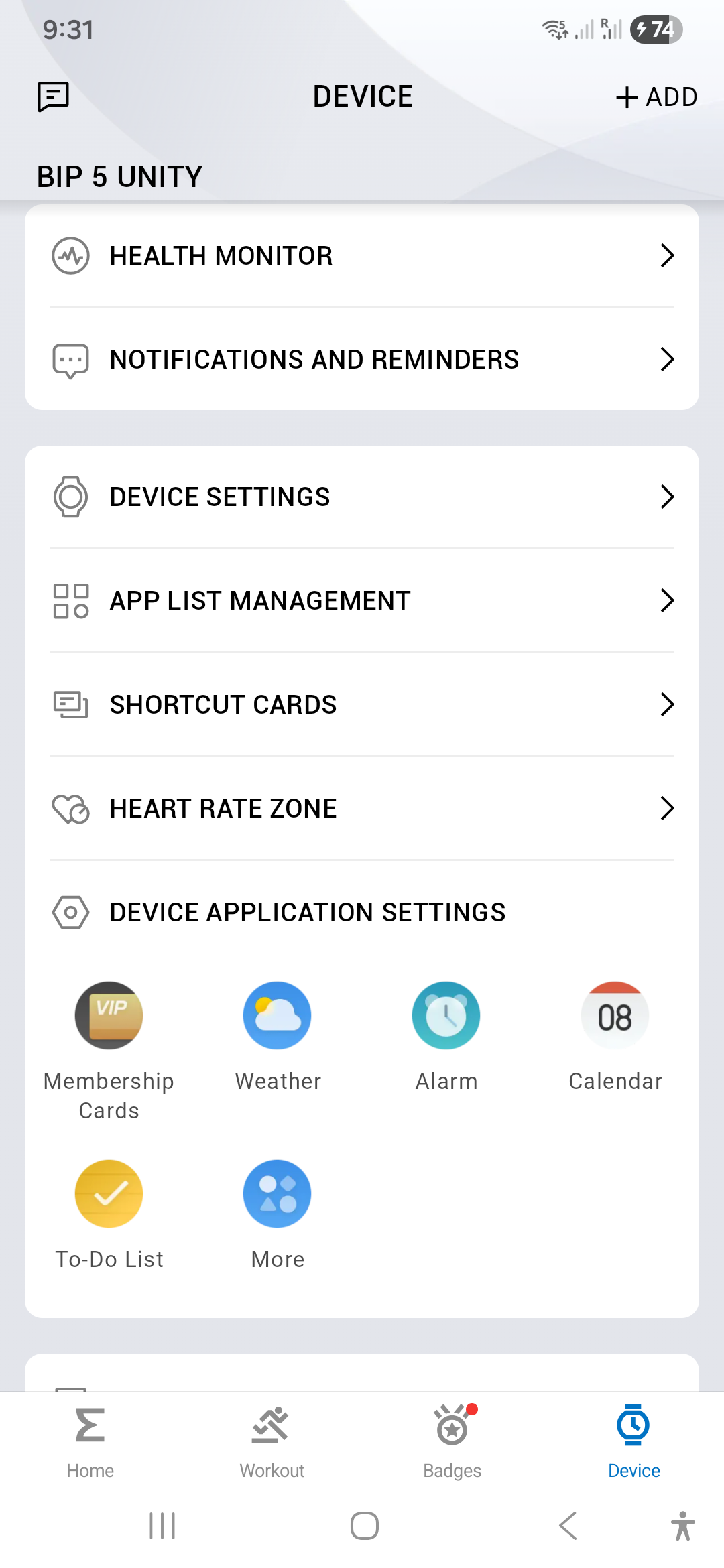
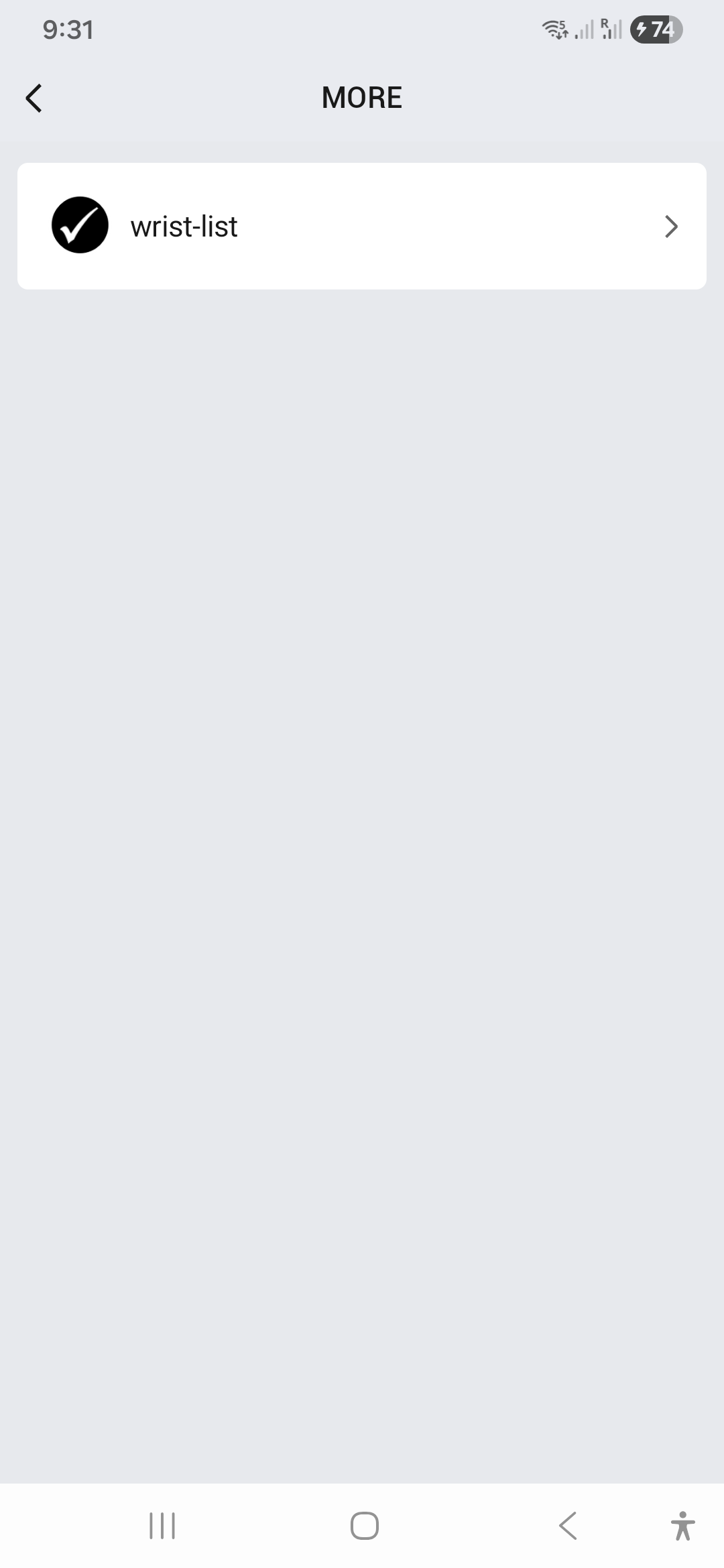
You should see a page like this
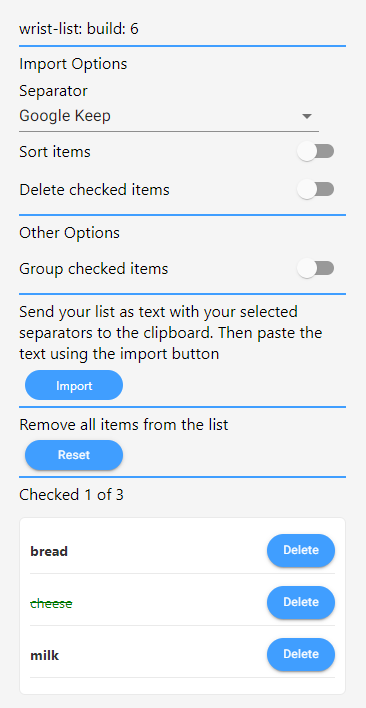
The main items on this page are
Import Options
Separator
Separators are used to split the text into list items as it is pasted into wrist-list.
- Google Keep, is used when importing lists from Google Keep, see below for details of importing
- CSV, uses comma and semicolon
,;as a separator - Markdown, uses asterisk plus and minus
*+-as a separator
In addition spaces are trimmed from each items and empty items are removed
Sort Items
If selected then the items are sorted alphabetically as they are imported. Otherwise the items are left in the order they were in the source text.
Delete Checked Items
If selected then items that have been checked in the source text are removed as they are imported. Otherwise all items are imported, the checked items are marked as checked. The identification of checked items depends on the source separator format. For Google Keep checked items start with [x], for markdown checked items start +
Other options
Group Checked Items
If selected then checked items are placed together at the bottom of the list, otherwise they appear throughout the list where they were originally imported. This will apply when items are imported and also as they are checked on the watch.
Import
When you select import then a panel is displayed with a text entry field. You should either type items that you want to import into the list here, or perhaps more easily paste them into the text field. The typed or pasted text needs to include your selected separator style.
For example getting your list from Google Keep
- Open Keep on your phone, goto the main screen that displays your lists
- Long press on a list
- From the overflow menu select “Send”
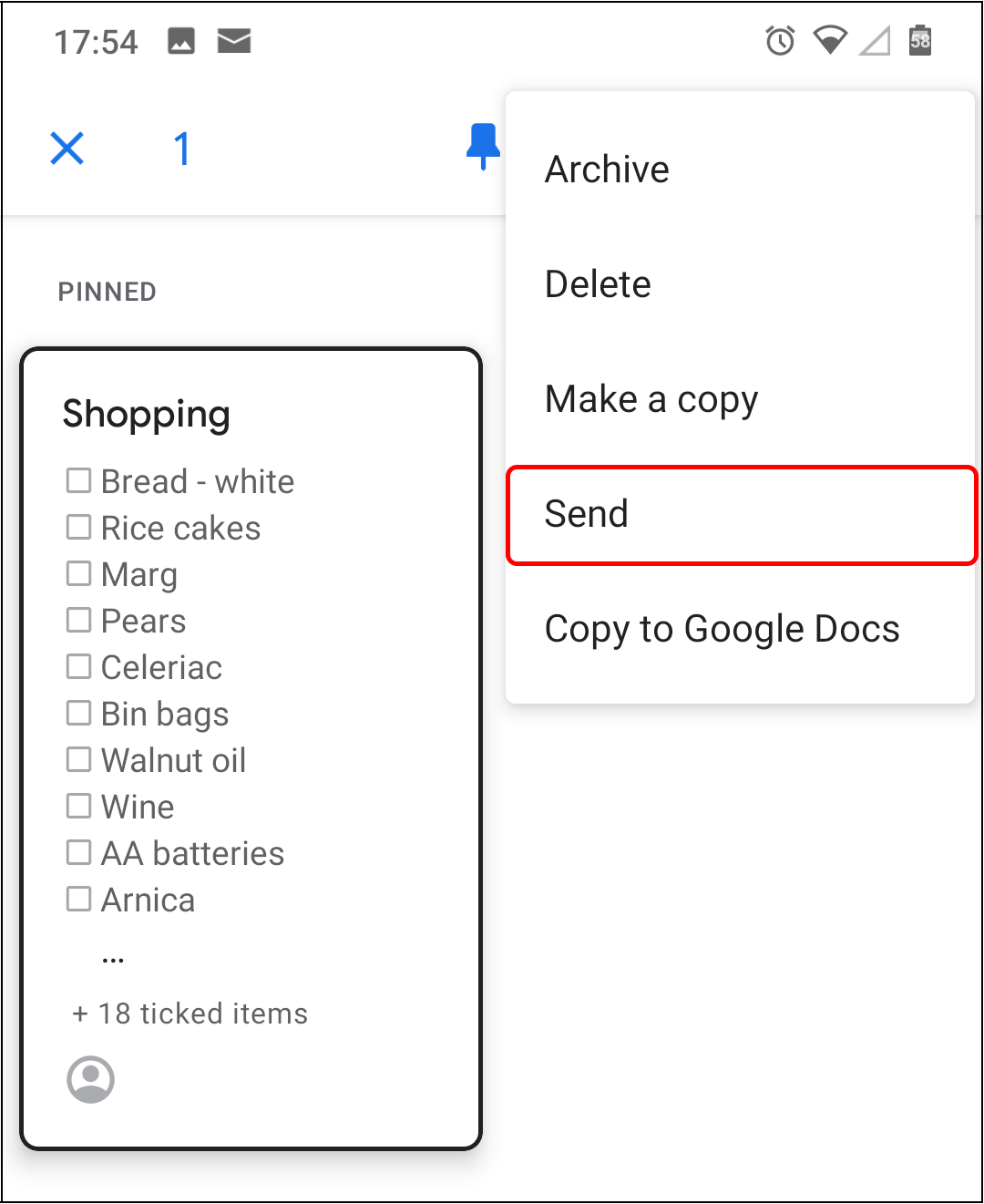
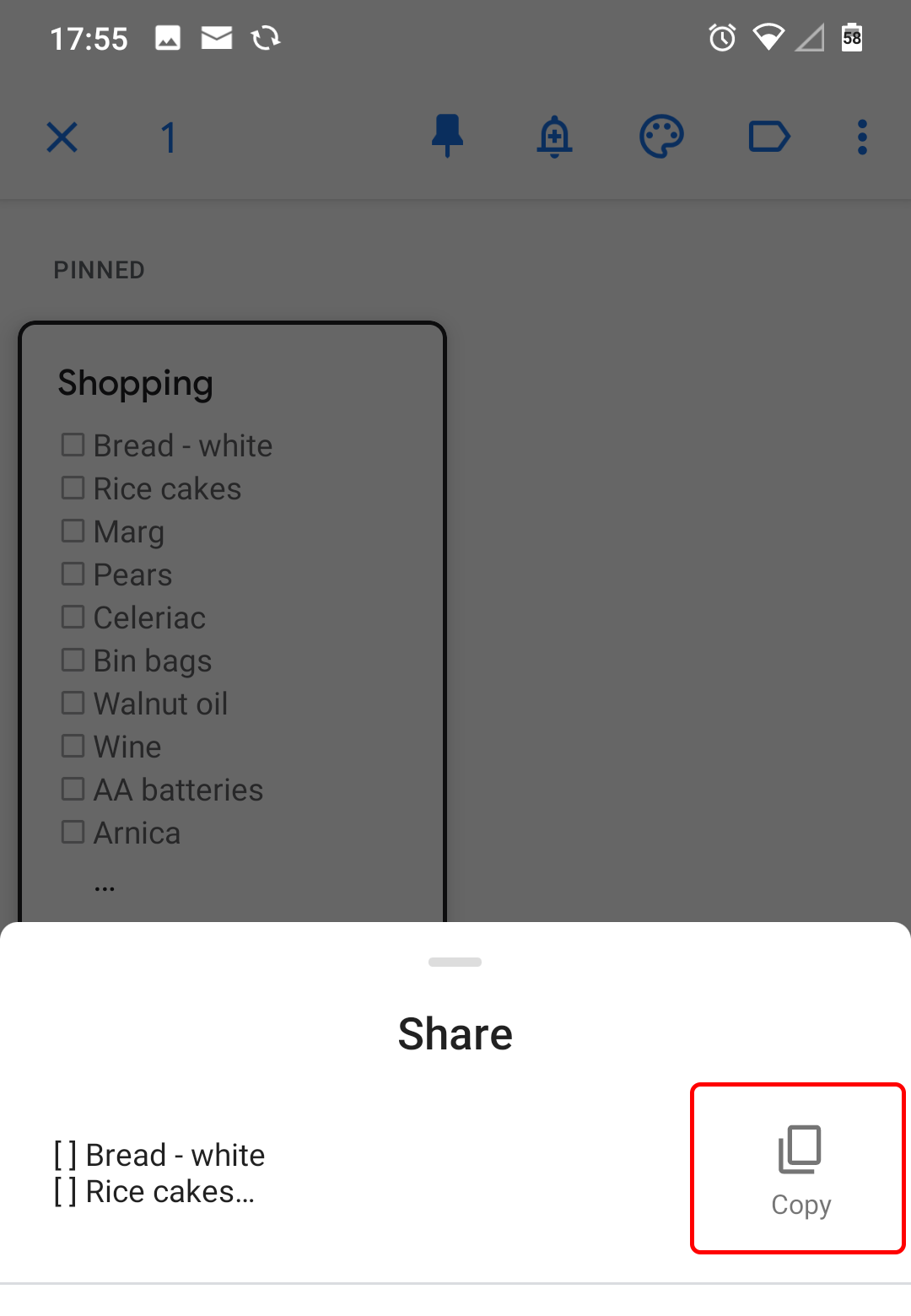
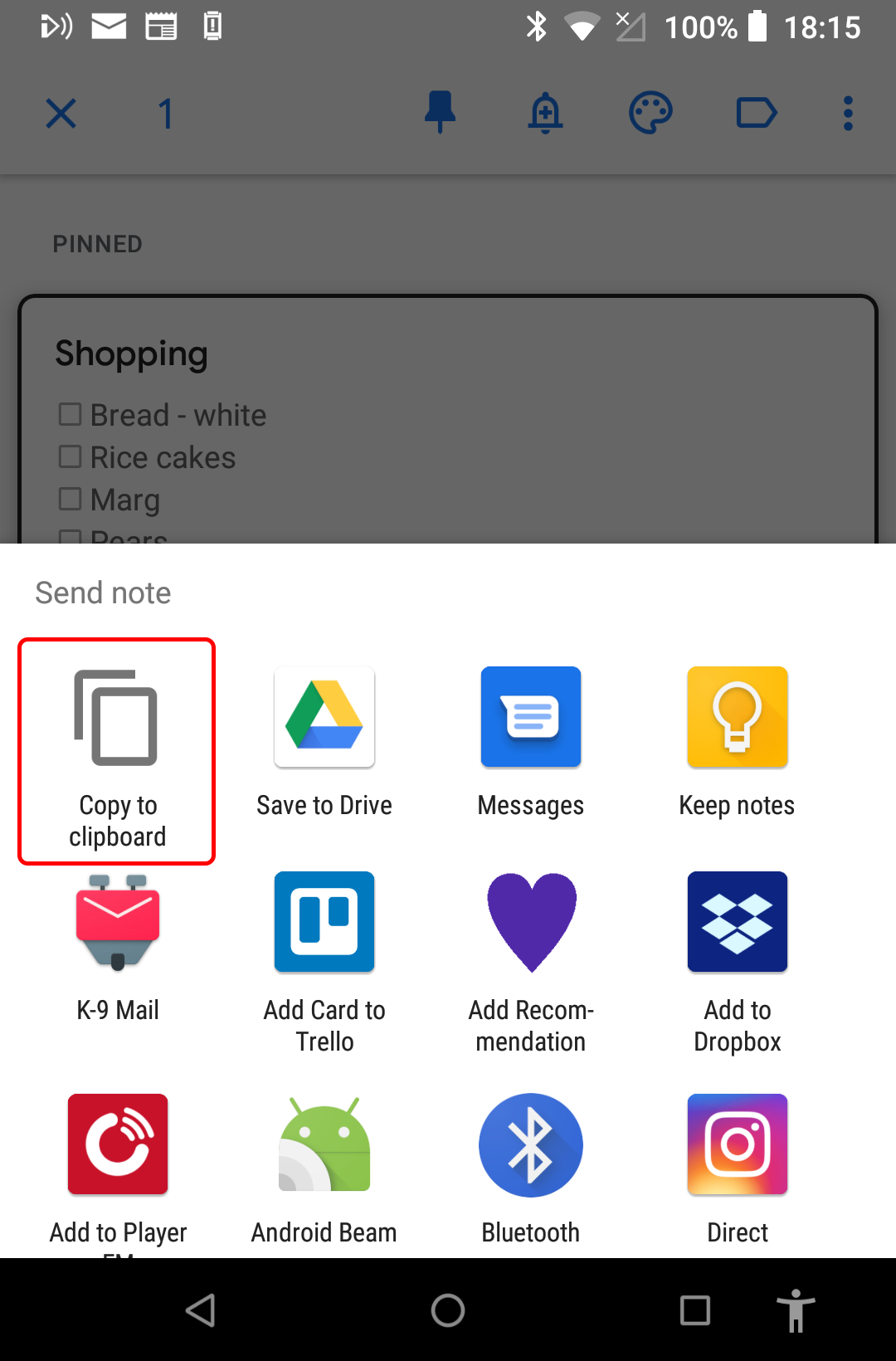
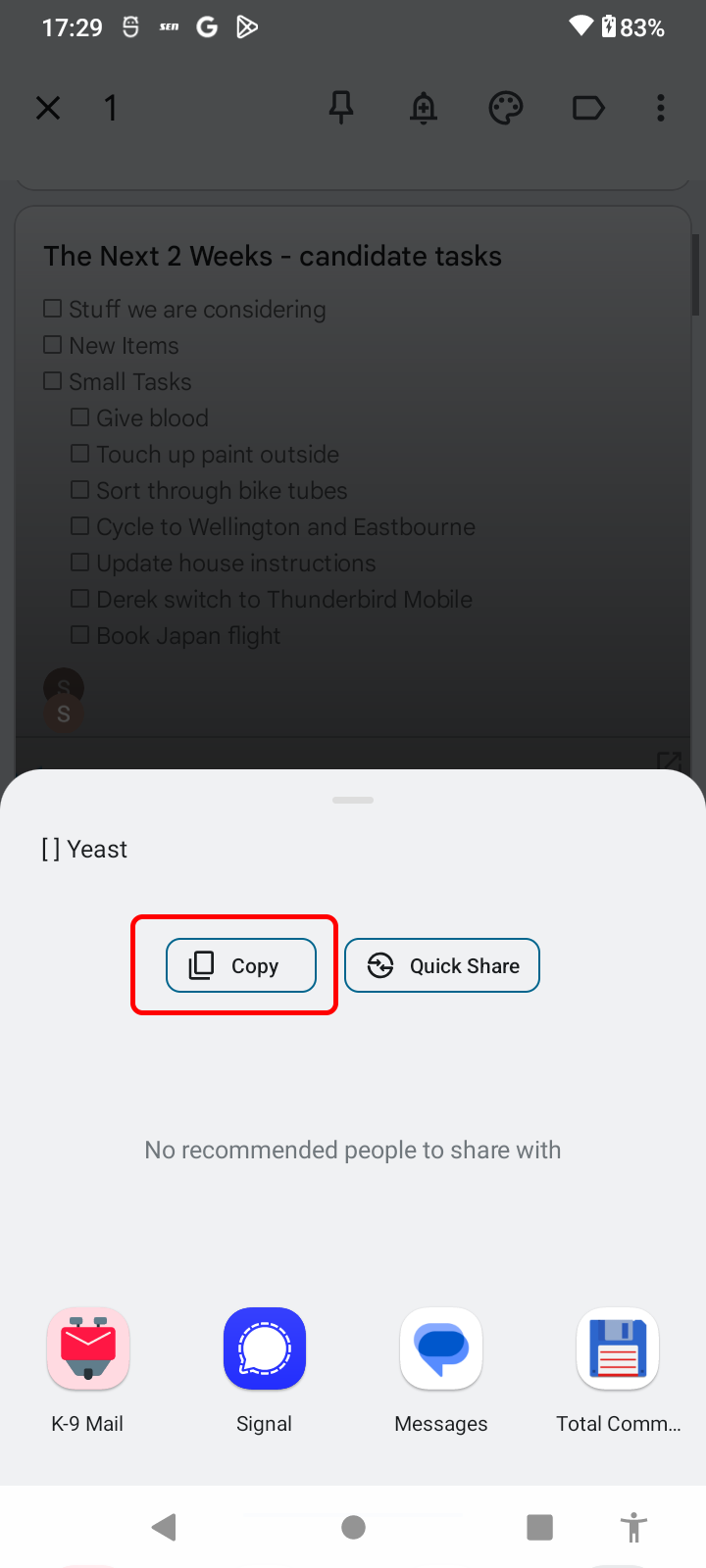
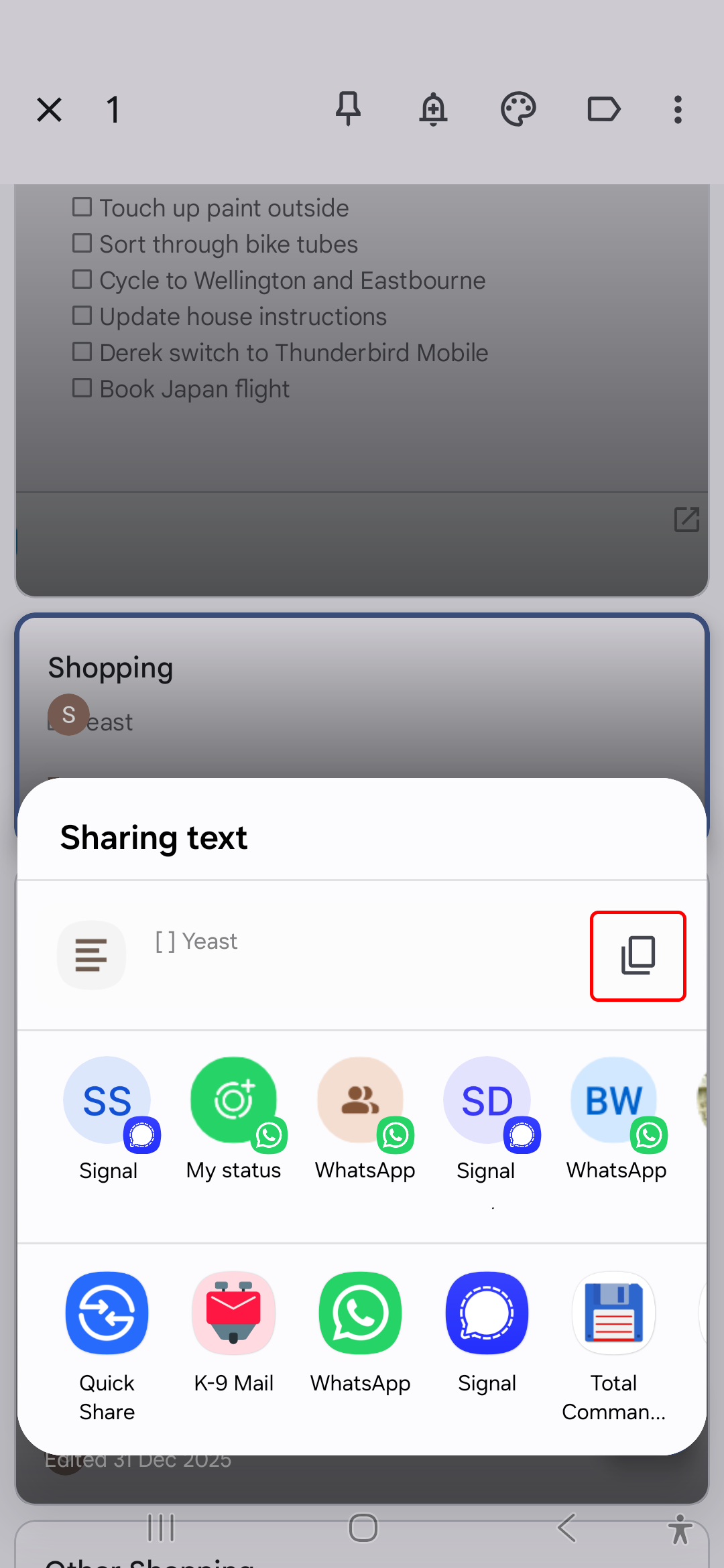
- On the share menu, either copy it to the clipboard or send it to an app where you can copy the list to the clipboard. Different versions of Android will present the share options differently
- Goto the settings page of the wrist-list app within the Zepp app on your phone as detailed above
- Select Reset if you want to start a new list, or do not if you just want to add to a list
- Select Import
- Clear any existing text you do not want
- Long press on the text entry field and select paste
You do not need to have wrist-list open on your watch to transfer the list, the next time it is opened on you watch then the list will be updated.
Reset
This will remove all items from the current list. When you import items they are added to the list so you may want to reset before starting a new list.
The todo list
This is the current list of items. Items can be deleted from wrist-list however it will not delete the items from the source app. This list is kept in sync with the one on your watch, it also shows the number of items and the number checked.
Import list format
wrist-list imports text from the clipboard and then breaks the text up into multiple items and puts them into the list. The format that wrist-list expects on the clipboard depends on separator selected on the settings page.
As long as the clipboard contains plain text with the correct separators then it can be imported into wrist-list. In these examples the text is shown with each item on a new line, this is just for clarity, the line breaks are not essential, it would work if the text was just on one line.
The item itself cannot contain a separator character
Google Keep
The expected format is
[ ] bread
[x] cheese
[ ] milk
CSV
The expected format is
bread,
milk;
cheese,
Markdown
The expected format is
- milk
+ cheese
- bread
Installing wrist-list
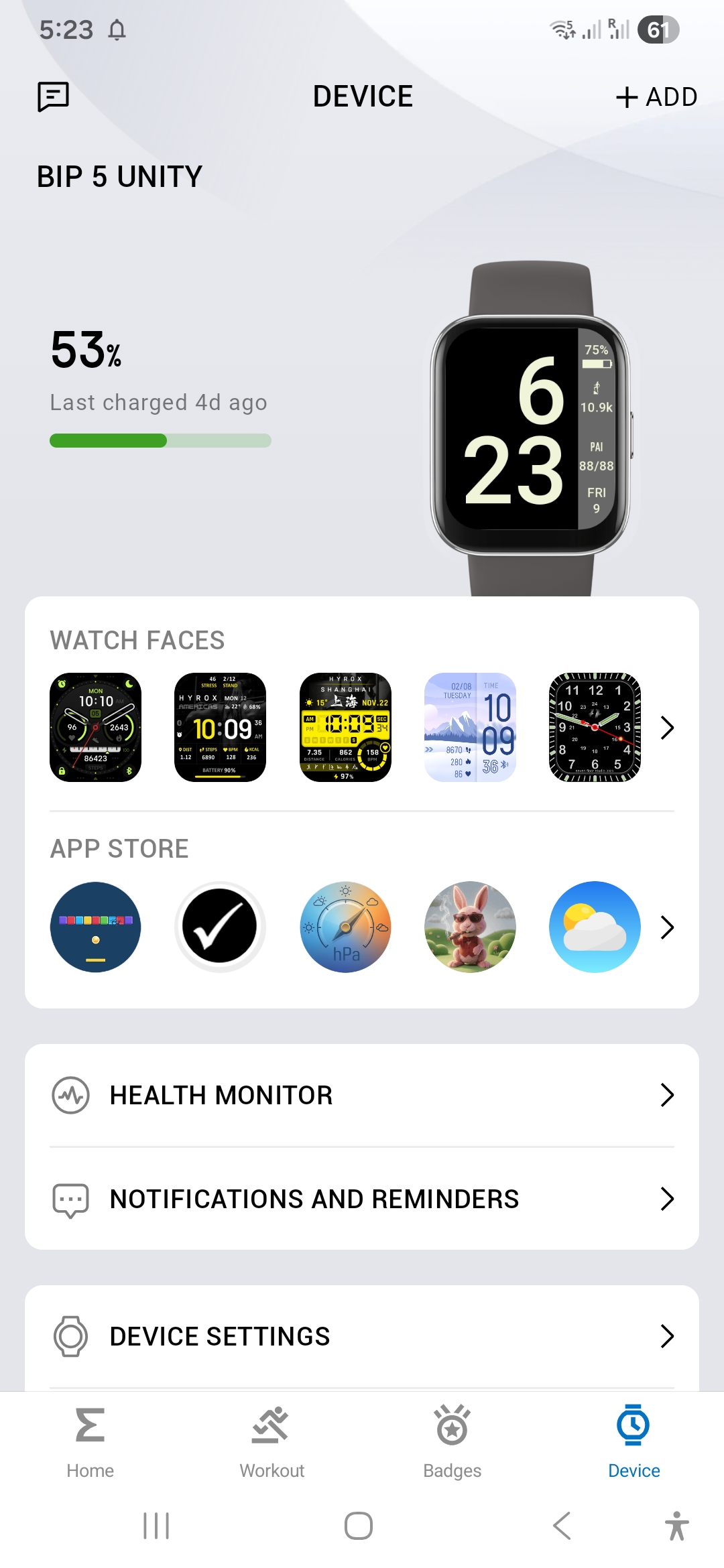
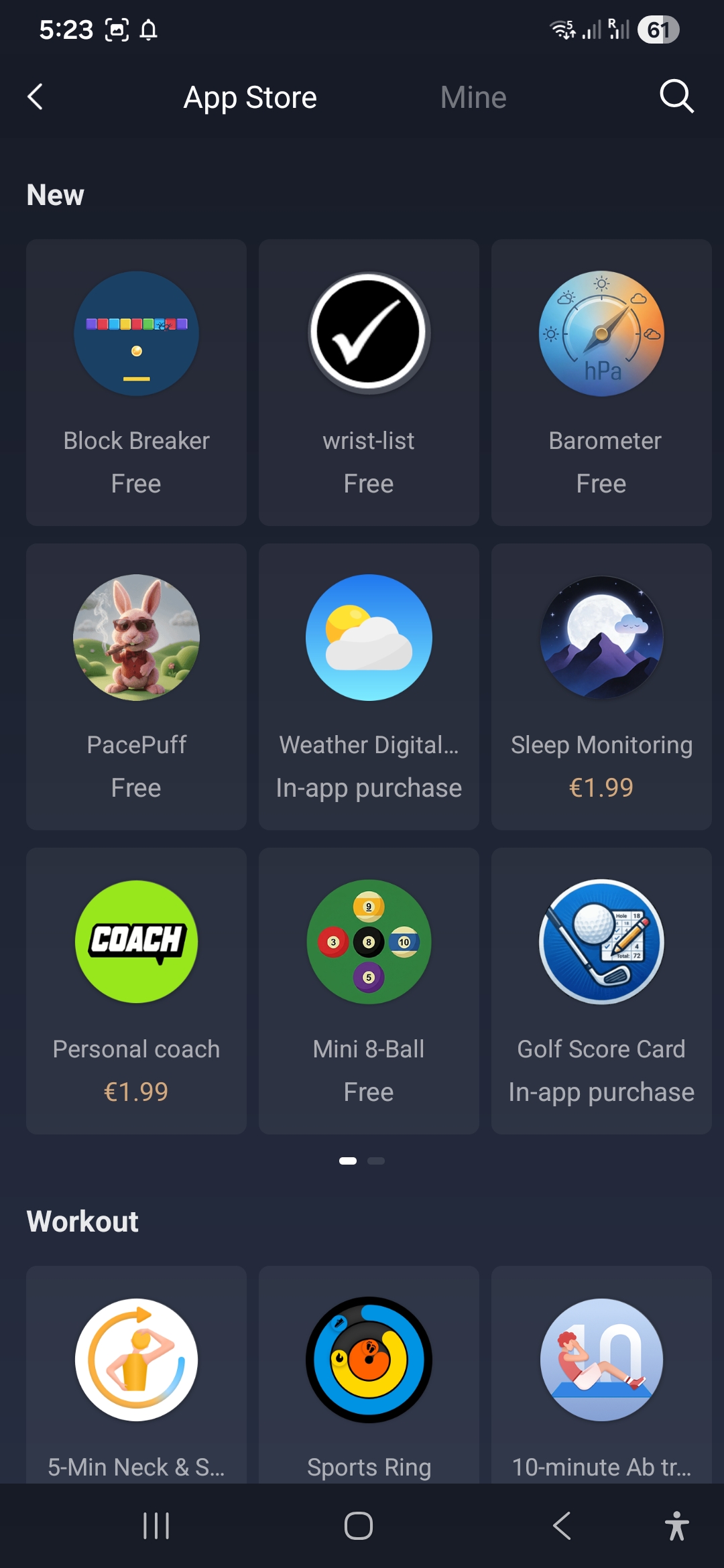
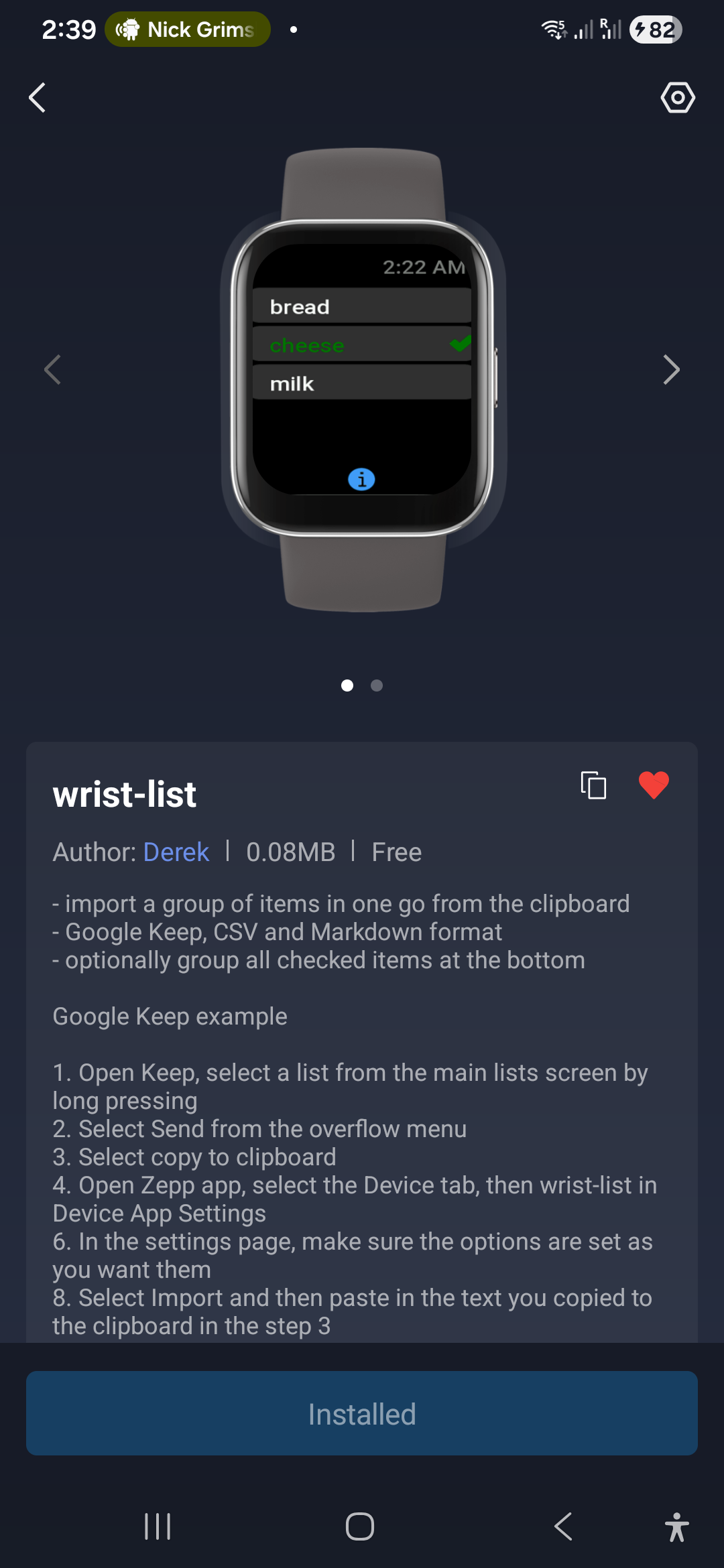
You can install it on any Amazfit watch that uses ZeppOS v3 or better by using the Zepp App on your phone and going to device tab and selecting the App Store. You can search for wrist-list or find it in the Utilities section
The source code for wrist-list is publicly available and open source.
Success criteria
I try and think what I would want as success criteria when launching an app. My previous ZeppOS app Timestyle+ achieved 1,000 downloads in the first two months. I thought that anything better than that would be good.
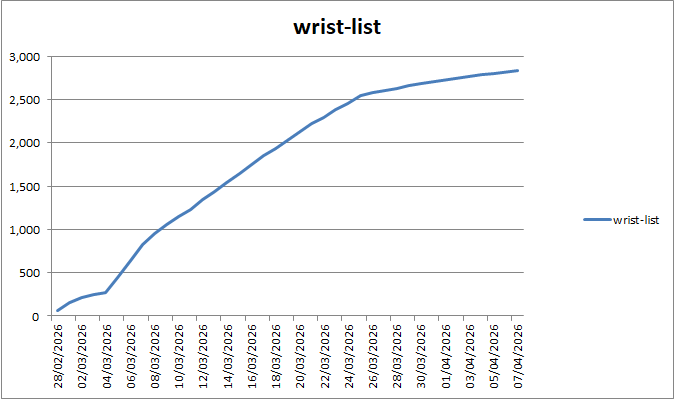
There have been over 2,500 downloads of wrist-list in the first month.